Here is the tool to check MySQL syntax.
Tuesday, December 13, 2022

Virtual Private Servers (VPS) Web Hosting
Here is the article.
Virtual Private Servers (VPS) Web Hosting
Have you ever wanted to put your website into its own machine but do not need all the power and space of a full dedicated web server? Virtual Private Servers, or VPS, fill that intermediate space. VPS are basically virtual machines, much like one that you might run on your own computer to mimic another PC running within your computer. To the web server and operating system running within the VPS, it appears as though they own the entire computer. Each VPS has a certain amount of disk space, RAM and bandwidth allocated.
Web hosts that provide VPS often give their customers virtually complete control over their VPS, allowing them root access (or administrator's access). You can thus usually install and run any software you want into your VPS, host any number of domains you wish, and so on. You are basically the boss of your own virtual server.
While Virtual Private Servers have certain benefits over full dedicated web servers, you should note that it usually runs slower with less resources than if you were to have your own real dedicated server. If your website has drastically outgrown shared web hosting, a VPS may not necessarily be the best solution. You may need to go with Dedicated Servers (Web Hosting) instead.
Related Pages
- How to Make / Create Your Own Website: The Beginner's A-Z Guide
- Should I Use a Specialized Blog Host or Install My Own Blog Software?
- Free Content Management Systems (CMS) PHP Scripts
- Free Blogging Software (PHP Scripts)
- How to Accept Credit Cards on Your Website
- How to Make Money From Your Website
- How to Register Your Own Domain Name
- How to Choose a Web Host
- The Fine Print in Web Hosting: Resource Usage Limits
VPS Web Hosting
- TsoHost
This UK web host offers a variety of VPS packages, the cheapest of which costs £36.66 per month (paid annually). You get 1 Xeon Core for the CPU, 768 MB RAM, 20 GB SSD, 400 GB bandwidth, SSH, CPanel control panel, a dedicated IP address, PHP, Perl, ZendGuard and ionCube loaders, mod_rewrite, unlimited MySQL databases, cron jobs, SVN and git clients, custom error pages, geolocation, etc. If you're wondering about the odd name (I was), it is a palindrome, where the word is the same whether you read it forwards or backwards.
- GoDaddy.com Virtual Dedicated Hosting
This web host offers VPS hosting, which they call "Virtual Dedicated Servers", for as low as $29.99 per month (paid monthly; if you pay for longer periods in one go, the amount is smaller). This package includes 10 GB of disk space, 500 GB of bandwidth, FTP, SSL certificate, 3 dedicated IP addresses, PHP, Perl, etc.
- DreamHost Managed VPS Hosting
This web host offers several VPS hosting packages for as low as $10.00 per month. The cheapest package provides 1 GB RAM (which you can increase/upgrade, if you need to), 30 GB SSD storage, unlimited websites, unlimited traffic, unlimited email at your domain, free SSL certificates, a control panel, unlimited MySQL databases, etc.
PHP MySQL website | Web hosting
Here is the article.
How to Choose a Web Host
by Christopher Heng, thesitewizard.comChoosing for a web host is one of the first few things you will need to do when you create a website. So what are some of the things you need to look for? The criteria for choosing a free web host and a commercial web hosting solution are slightly different although they do overlap. Since thesitewizard.com caters to people who might be looking for either of these types of hosting, I will deal with each of these in turn. If you are only interested in one of these types, you can simply skip to the appropriate section. I have written these sections to be as independent of the other as possible.
[ To skip to the section on choosing a commercial web host, click here. ]
Choosing a Free Web Host
Advertising
Most free web hosts impose advertising on your website. This is done to cover the costs of providing your site the free web space and associated services. Some hosts require you to place a banner on your pages, others display a window that pops up every time a page on your site loads, while still others impose an advertising frame on your site. There is really no hard and fast rule which is to be preferred: some people hate a pop-up window, other webmasters dislike having to stuff banner codes into their pages, and many people cannot stand an advertising frame (which may cause problems when you submit your website to search engines). Whichever method is used, check that you're comfortable with the method.
Note that free web hosts without forced advertisements aren't necessarily good news. Without viable means to recover the costs of running their server, such hosts close with alarming frequency.
Amount of web space
Does it have enough space for your needs? If you envisage that you will expand your site eventually, you might want to anticipate future expansion. Most sites use less than 5MB of web space. Indeed, at one time, one of my other web sites, thefreecountry.com, used less than 5MB of space although it had about 150 pages on the site. Your needs will vary, depending on how many pictures your pages use, whether you need sound files, video clips, etc.
FTP access
FTP is the most common method used by people to transfer their web pages and other files from their computer to their web host's computer, so that it can be viewed by anyone in the world.
Some free hosting providers only allow you to design your page with their online site builder. While this is useful for beginners, do you have the option to expand later when you become experienced and their online page builder does not have the facility you need? Online site builders also have significant disadvantages, a subject which I discuss at length in my article comparing online site builders with standalone web editors.
FTP access, or at the very least, the ability to upload your pages by email or browser, is needed. Personally, I feel FTP access is mandatory, except for the most trivial sites.
File type and size limitations
Watch out for these. Some free hosts impose a maximum size on each of the files you upload (including one with a low of 200KB). Other sites restrict the file types you can upload to HTML and GIF/JPG files. If your needs are different, eg, if you want to distribute your own programs on your pages, you will have to look elsewhere.
Reliability and speed of access
This is extremely important. A site that is frequently down will lose a lot of visitors. If someone finds your site from the search engines, and he/she tries to access it but find that it is down, he/she will simply go to another site. Slow access is also very frustrating for visitors (and for you too, when you upload your site). How do you know if a host is reliable or fast? If you can't get feedback from anyone, one way is to try it out yourself over a period of time, both during peak as well as off-peak hours. After all, it is free, so you can always experiment with it.
PHP and/or Perl
(In case you're wondering: What is PHP and Perl?)
It's quite possible for a website to work even without PHP or Perl access. For example, you can always use one of the many free script hosting services available that provide web statistics, search engines, forms, polls, mailing lists, etc, without requiring you to dabble with Perl or PHP scripts.
However if you really want to do it yourself, with the minimum of advertising banners from these free providers, you will need either PHP or Perl access. Note that it is not enough to know they provide PHP or Perl access: you need to know the kind of environment your scripts run under: is it so restrictive that they are of no earthly use? For PHP scripts, does your web host allow you to use the
mail()function, which allows your scripts to send email? For Perl scripts, do you have access tosendmail(a computer program) or its workalike?Bandwidth allotment
Nowadays, many free web hosts impose a limit on the amount of traffic your website can use per day and per month. This means that if the pages (and graphic images) on your site is loaded by visitors beyond a certain number of times per day (or per month), the web host will disable your web site (or perhaps send you a bill). It is difficult to recommend a specific minimum amount of bandwidth, since it depends on how you design your site, your target audience, and the number of visitors you're able to attract to your site. In general, 100MB traffic per month is too little for anything other than your personal home page and 1-3GB traffic per month is usually adequate for a simple site just starting out. Your mileage, however, will vary.
Choosing a Commercial Web Host
Reliability and speed of access
Not only should the web host be reliable and fast, it should guarantee its uptime (the time when it is functional). Look for a minimum uptime of 99%. In fact, even 99% is actually too low — it really should be 99.5% or higher. The host should provide some sort of refund (eg prorated refund or discount) if it falls below that figure. Note though that guarantees are often hard to enforce from your end — especially if the host denies there was any downtime. However, without that guarantee, the web host will have little incentive to ensure that its servers are running all the time.
Data Transfer (Traffic/Bandwidth)
Data transfer (sometimes loosely referred to as "traffic" or "bandwidth") is the amount of bytes transferred from your site to visitors when they browse your site.
Don't believe any commercial web host that advertises "unlimited bandwidth". The host has to pay for the bandwidth, and if you consume a lot of it, they will not silently bear your costs. Many high bandwidth websites have found this out the hard way when they suddenly receive an exorbitant bill for having "exceeded" the "unlimited bandwidth". Always look for details on how much traffic the package allows. I personally always stay clear of any host that advertises "unlimited transfer", even if the exact amount is specified somewhere else (sometimes buried in their policy statements). Usually you will find that they redefine "unlimited" to be limited in some way.
In addition, while bandwidth provided is something you should always check, do not be unduly swayed by promises of incredibly huge amounts of bandwidth. Chances are that your website will never be able to use that amount because it will hit other limits, namely resource limits. For more details, see the article The Fine Print in Web Hosting: Resource Usage Limits.
To give you a rough idea of the typical traffic requirements of a website, most new sites that don't provide video or music on their site use less than 3 GB of bandwidth per month. Your traffic requirements will grow over time, as your site becomes more well-known, so you will need to also check their policy when you exceed your data transfer limit: is there a published charge per GB over the allowed bandwidth? Is the charge made according to actual usage or are you expected to pre-pay for a potential overage? It is better not to go for hosts that expect you to prepay for overages, since it is very hard to forsee when your site will exceed its bandwidth and by how much.
Disk space
For the same reason as bandwidth, watch out also for those "unlimited disk space" schemes. Many new sites (that don't host videos or music) need less than 20 MB of web space, so even if you are provided with a host that tempts you with 100 GB (or "unlimited space"), be aware that you are unlikely to use that space, so don't let the 100 GB space be too big a factor in your consideration when comparing with other web hosts. The hosting company is also aware of that, which is why they feel free to offer you that as a means of enticing you to host there. As a rough gauge, thesitewizard.com, with nearly 400 pages in April 2013, used only about 18 MB for all its pages and associated files.
Technical support
Does its technical support function 24 hours a day, 7 days a week (often abbreviated 24/7), all year around? Note that I will not accept a host which does not have staff working on weekends or public holidays. You will be surprised at how often things go wrong at the most inconvenient of times. Incidentally, just because a host advertises that it has 24/7 support does not necessarily mean that it really has that kind of support. Test them out by emailing at midnight and on Saturday nights, Sunday mornings, etc. Check out how long they take to respond. Besides speed of responses, check to see if they are technically competent. You wouldn't want to sign up with a host that is run by a bunch of salesmen who only know how to sell and not fix problems.
FTP, PHP, Perl, SSI, .htaccess, SSH, MySQL, Cron
If you are paying for a web hosting account, you really should make sure you have all of these.
Note that some commercial hosts do not allow you to install PHP or Perl scripts ("What is PHP and Perl?") without their approval. This is not desirable since it means that you have to wait for them before you can implement a feature on your site. The ability to create or modify ".htaccess" files is needed if you are to do things like customize your error pages (pages that display when, say, a user requests for a non-existent page on your site) or to protect your site in various ways (such as to prevent bandwidth theft and hotlinking, password-protect a directory (folder), etc).
SSH access is useful for certain things, including testing certain scripts (programs), maintaining databases, etc. MySQL ("What is MySQL?") is needed if you want to set up a blog or use a content management system. Cron is a type of program scheduler that lets you run programs at certain times of the day (eg, once a day). Check to see if these facilities are provided.
SSL (secure server)
If you are starting a new website, it's probably best to use SSL, where your website is accessed using a web address that begins with "https://" instead of "http://", from the very outset. A detailed explanation of what SSL is can be found in my article How to Move Your Website to SSL (ie, Convert from HTTP to HTTPS). You don't have to read the entire article, just the first few sections explaining what SSL is, and the discussion on the advantages and disadvantages of using SSL for a website. The rest of that article is meant for people who already have a website, and need to convert it to use SSL. Since you are just starting out, you should get it done at the very beginning so that you can avoid all the headaches and risks that come with altering the web address of every single page on your website.
Note that this is not an option if you are selling goods or services through your website and plan to collect credit card payments yourself. Such sites must have SSL.
At the time I write this, some web hosts give you an SSL certificate for your website for free, some charge you a small one-time fee for installing a free SSL certificate, some charge you for the SSL certificates which they sell and still others charge you monthly (recurring) fees in addition to the SSL certificate fee.
Email, Autoresponders, POP3, Mail Forwarding
If you have your own site, you will probably want to have email addresses at your own domain, like sales@yourdomain.com, etc. Does the host allow you to set up whatever email addresses you want on your domain, so that mail can be forwarded to your current email address, or placed into a mail box on your web hosting account itself? Can you set an email address to automatically reply to the sender with a preset message (called an autoresponder)? Can you retrieve your mail with your email software?
Control Panel
This is called various names by different hosts, but essentially, they all allow you to manage different aspects of your web account yourself. Typically, and at the very minimum, it should allow you to do things like add, delete, and manage your email addresses, and change passwords for your account. I will not sign up with a host where I have to go through their technical support each time I want to change a password or add/delete an email account. Such tasks are common maintenance chores that every webmaster performs time and time again, and it would be a great hassle if you had to wait for their technical support to make the changes for you.
Multiple Domain Hosting and Subdomains
For those who are thinking of selling web space or having multiple domains or subdomains hosted in your account, you should look to see if they provide this, and the amount that they charge for it (and whether it is a one-time or monthly charge, etc).
Web Server and Operating System
Is the type of operating system and server important? I have discussed this issue at length in the article "Should You Choose a Linux or a Windows Web Hosting Package? Is There Such a Thing as a Mac Web Host?"
In general, most people will want to sign up for a web host offering a Unix-based system (like Linux, FreeBSD or OpenBSD) and running the Apache web server. Most web-based software assume your website is running on such a system, and you will usually experience fewer compatibility issues with it. There are also a lot of guides available on the Internet on configuring such systems, so finding help when you need it is easier as well.
In my opinion, the only time when you will want to use a Windows server is if you're running Windows-specific programs on the server. But even then, you'll probably be better off looking for a PHP-equivalent, and using a Unix-based system.
Price
I was actually hesitant to list this, but I guess it's futile not to. However, I would caution that while price is always a factor, you should realise ("realize" in US English) that you often get what you pay for, although it's not necessarily true that the most expensive hosts are the best.
Monthly/Quarterly/Annual Payment Plans
Most web hosts allow you to select an annual payment plan that gives you a cheaper rate than if you were to pay monthly. My current personal preference is to pay monthly with all new web hosts until I'm assured of their reliability and honesty. Paying monthly allows me to switch web hosts quickly when I find that the current host does not meet my requirements: this way, I'm not tied down to a bad web host because I have prepaid for an entire year. I do this even if the new web host guarantees that they will refund the balance if I'm dissatisfied, since at the point I sign up, I have no assurance that they will honour their guarantee. Later (usually after a couple of years), when I'm satisfied with the host, I may change payment plans to the discounted annual plans.
Resellers?
Not all hosting companies own or lease their own web servers. Some of them are actually resellers for some other hosting company. The disadvantage of using a reseller is the possibility that you are dealing with people who don't know much about the system they are selling and who take longer to help you (they have to transmit your technical support request to the actual hosting company for it to be acted upon). However, this also depends on both the reseller and the underlying hosting company. It is thus wise not to rule out all resellers; there are a number of reliable and fast ones who are actually quite good and cheap. In fact, a number of resellers sell the same packages cheaper than their original hosting company. If you find out that a particular company is a reseller, you will need to investigate both the reseller and the real hosting company.
International
If you don't stay in the USA, you have the option of hosting your site with some local provider. The advantage here is the ease of dealing with them (they are after all easily accessible by phone call or a visit), your familiarity with the local laws and easy recourse to those laws should it be necessary. It should be your choice if your target audience is local (eg a local fast food delivery service). On the other hand, hosting it in USA has the advantage of faster access for what is probably the largest number of your overseas visitors (particularly if you have an English-speaking audience). You also have a large number of hosting companies to choose from, and as a result, cheaper prices too.
Others' Reviews
You should make it a point to check out what others have to say about the web host. Unfortunately, this is easier said than done.
There are many reviews of web hosts around. Some are reviews made by a single webmaster on their own site, others are posted on webmaster forums. However, as you should always do when looking at reviews (of anything), read them with a pinch of salt. Some glowing reviews may come from people working for the web host itself, disguised as multiple satisfied customers. Likewise, negative reviews of a particular host can sometimes come from unscrupulous competitors of that host.
In addition, even if the review is genuine, be careful about trusting a glowing review from someone who has been with a web host for only a few months. While that person may be perfectly honest, you can't really tell the quality of a web host if you've only been hosted on its server for so short a time. That person could simply be going through what webmasters jokingly call the "honeymoon period".
The converse is also true. Honest bad reviews about a web host from brand-new webmasters are problematic too. You have to evaluate carefully whether the bad review is actually a reflection of how bad the web host is, or how inexperienced the webmaster is. That is, the newcomer may ascribe faults to the web host that are actually his/her failure to properly understand how to do things. The root of the problem here is that there are many technical aspects to creating a website that can easily trip a newcomer. I have read supposedly-bad reviews of web hosts that actually say more about the newness of the webmaster than the quality of the web host.
Anyway, before you ask, you can read my review of the web host thesitewizard.com currently uses at
https://www.thesitewizard.com/archive/webhosting.shtml. On occasion, I may also make a comment or two about some of the hosts I list on the Budget Web Hosts page on thefreecountry.com.Don't skip this step, or you might find yourself being suckered by a host that everyone else is steering clear of.
The Myth of the Perfect Commercial Host
In general, I doubt that there are any "perfect" web hosting companies around. Note that even if you are prepared to pay a huge price for your hosting needs, it does not guarantee that your host is any good. This is an interesting industry where a high price does not necessarily yield quality hosting and support.
On the other hand, one thing you can probably be sure of is that you will not get top-notched support if you only pay rock bottom prices. When the price charged is extremely low, which company can afford to hire enough good help to cater to all its users?
Like me, you'll probably end up settling for a trade-off between price, reliability and features that you're willing to live with.
What to Do Next
If you are puzzled as to what to do after you sign up with a web host, please read How to Create a Website. It takes you step-by-step through the entire process of making a website.
PHP | .htaccess file | How to prevent image bandwidth theft with .htaccess
Here is the article.
How to Prevent Image Bandwidth Theft With .htaccess
by Christopher Heng, thesitewizard.com
If your website displays beautiful pictures, you may encounter the ugly situation where your photos and other images are used without your permission on other sites. Even worse, those websites "hotlink" your pictures, that is, they don't host the pictures directly on their site, but embed them into their pages by linking to the copy on your site. This way, not only do they infringe your copyright, but they also make you pay for their bandwidth.
System Requirements
The solution outlined in this article requires your site to be hosted on a machine using the Apache web server. In addition, your web host must allow you to override the server's configuration using a .htaccess file. For the more technically inclined, it uses the facilities provided in the mod_setenvif Apache module.
If this is not the case for your website, you cannot use the suggestions given here. You might wish to use my alternative solution, a PHP script that block image bandwidth thieves instead.
(To find out if your web server fulfills the requirements stated here, try checking up the documentation on your web host's website — the information is usually available on their list of web hosting packages, price lists or on their order form. Alternatively, contact their technical support and find out from them.)
Steps to Take
Protecting your images using a .htaccess file is trivial.
Put all the images you wish to protect from being stolen (bandwidth-wise) in a separate directory.
Create an ASCII text file named
.htaccessand save it in that directory. Note that the name starts with a fullstop ("period" in US English) and is entirely in small letters (ie, lowercase). Cut and paste the following lines into that file:SetEnvIfNoCase Referer "^http://www.example.com/" locally_linked=1
SetEnvIfNoCase Referer "^http://www.example.com$" locally_linked=1
SetEnvIfNoCase Referer "^http://example.com/" locally_linked=1
SetEnvIfNoCase Referer "^http://example.com$" locally_linked=1
SetEnvIfNoCase Referer "^https://www.example.com/" locally_linked=1
SetEnvIfNoCase Referer "^https://www.example.com$" locally_linked=1
SetEnvIfNoCase Referer "^https://example.com/" locally_linked=1
SetEnvIfNoCase Referer "^https://example.com$" locally_linked=1
SetEnvIfNoCase Referer "^$" locally_linked=1
<FilesMatch "\.(gif|png|jpe?g)$">
Order Allow,Deny
Allow from env=locally_linked
</FilesMatch>Change "example.com" to your real domain name. If your site can be accessed using other domain names (eg "www.example.net"), be sure to add an additional SetEnvIfNoCase line for each of those domain names (with the URLs appropriately changed to the addresses of your domains. On the other hand, if your site can only be accessed using one domain, for example, using only "www.example.com", feel free to delete the non-www versions, although it is probably a good idea to leave it there in case you ever change your mind in the future. The cut and paste code above caters to the usual case where most sites can be accessed with or without the "www" prefix. It also works whether your site is accessed with HTTPS or plain HTTP.
Do not correct my spelling in the code snippet given above. "Referer" (with only one "r" in the middle of the word) is the word that needs to go into the
.htaccessfile — do not change it to "Referrer". Yes, I know the spelling is wrong in every single variant of English. Unfortunately, that spelling error was built into various Internet software in ancient times, and cannot be changed now since too many sites depend on it being spelt this way. (It's the problem faced by popular software: the programmers can't fix mistakes they made in the past, because everyone now depends on that mistake working exactly as it used to.)
That's all there is to it. The above file should protect all images that have ".gif", ".png", ".jpg" and ".jpeg" extensions.
Remember to use an ASCII text editor (also known as "text editor" or "plain text editor") to create the .htaccess file. Do not use Microsoft Word or Wordpad. Notepad (found on all Windows systems) is fine.
Explanation: .htaccess to Block Unauthorized Image Usage
Whenever a browser sends your web server a request for an image, it usually also sends the URL of the page that linked to that image. The above .htaccess file causes the server to check this URL (via mention of "Referer" in the above snippet) and if it is one of the authorized URLs that you specify, it will set an internal flag called "locally_linked". This internal flag is technically called an "environmental variable". If the URL sent is not in this list of authorised URLs, the flag (or environment variable) is not set. Note that we also set the "locally_linked" variable if the browser does not send any URL at all: this occurs when the visitor accesses your site using a browser or a proxy that suppresses the referring URL.
The web server then checks if the file requested has an extension in the list given above (gif, png, jpg and jpeg). If so, and the "locally_linked" variable is set, it will send the image. Otherwise it an error will be sent.
What Happens When A Bandwidth Thief Links to Your Image
After you create the .htaccess file, if some other site tries to link to your image from their site, they will find that the image will not display on their site. On the other hand, your images should generally load fine on pages on your site.
Potential Problems
Like the PHP solution, this method relies on the HTTP_REFERER header being properly sent by the visitor's browser to your site. Some browsers, anonymous surfing proxies and personal firewalls allow the user to change what is sent. These software or proxies may thus (potentially) transmit HTTP_REFERER headers with some user-specified value.
When this occurs, the image will not appear even when the visitor is on your site (which means that your own page will have broken link images), or it may appear even when it is displayed on the thief's site.
Hopefully the percentage of people who encounter this is small, but be aware that these situations do occur.
How to Prevent a Directory Listing of Your Website with .htaccess
Here is the article.
How to Prevent a Directory Listing of Your Website with .htaccess
by Christopher Heng, thesitewizard.com
If you create a new directory (or folder) on your website, and do not put an "index.html" file in it, you may be surprised to find that your visitors can get a directory listing of all the files in that folder. For example, if you create a folder called "incoming", you can see everything in that directory simply by typing "http://www.example.com/incoming/" in your browser. No password or anything is needed.
This article shows you how you can configure your web server so that it does not show a directory listing by default.
Prerequisites
Your Website Must Be on an Apache Web Server
For the method described in this article to work, your site should be hosted on an Apache web server. This probably constitutes the majority of websites on the Internet, so it is likely that you satisfy this requirement. In general, if your web server (the computer that your site is running on) is using Linux or FreeBSD, chances are that it's on an Apache server. If your server is using Windows, your website is probably not using Apache. All is not lost, though. You can still accomplish the same thing using a different method. Read How to Prevent a Directory Listing of Your Website Without Using .htaccess instead.
(Note that I'm talking about the computer hosting your website, not your own personal computer. If you're not sure what type of server your site is on, ask your web host.)
Your Web Host Must Have Enabled .htaccess Server Overrides
In addition to being hosted on an Apache web server, your web host needs to have enabled server overrides. This facility allows you to modify the web server configuration from your own website. In practice, this usually means that your website is hosted on a commercial web host rather than a free one. Free web hosts normally don't allow websites hosted on them to change the web server behaviour.
Both the above conditions must be true, or you won't be able to successfully do the things mentioned in this guide.
Is Protecting Your Directory Listing From View a Security Measure?
Protecting your directories from being listed by your website's visitors does not, in and of itself, make your website more secure. At best, it's security by obscurity. That is, you hope that by hiding stuff from view, nefarious visitors up to no good will not be able to easily list all your files with a single request. It doesn't stop them from directly accessing those files by name.
However, while you should of course implement other measures for securing your site, it's still good practice not to allow your directories to be listed by default. That way, at least, you don't make it too easy for others to survey your site for vulnerabilities. This is especially so if you have third-party scripts on your site (such as, for example, you run a blog).
It's important to realise this, so that you don't rely on this method alone for security.
Steps to Preventing a Directory Listing
Get Your Existing .htaccess File, If Any
Connect to your website using an FTP or SFTP software. Go to the top web directory of your site, where you place your home page, and look for a file called "
.htaccess". If it exists, download it to your computer.If it does not exist, make sure that it is not hidden from your view. This has to be done from within your FTP program itself. Depending on which program you use, you may need to look for a setting that says something like "show hidden files". In one program, namely FileZilla, you may have to enable the "Force showing hidden files" line in the Server menu, although in my experience, the program shows it by default.
Another way to do this is to log into your site from your web host's control panel. Most, if not all, commercial web hosts provide a way for you to view your web directories from your web browser, as well as upload and download files from them. If your web host has an option to "show hidden files" or some such thing, make sure you enable it. From your host's web interface, you should be able to locate and download your existing
.htaccessfile.Don't worry if, after all your efforts, you can't find any
.htaccessfile in the main web directory. It's quite normal for a website not to have one. You'll just have to create a blank one later. However, if one exists, it's important that you get it, so that we can add to the settings in the file instead of overwriting them.Make a Backup of the .htaccess File
If you managed to find and download the
.htaccessfile from your site, save a backup copy on your own computer. That is, make sure you have 2 copies of the.htaccessfile on your computer, the one you are about to modify, and a pristine copy of the original. The backup is useful in case you accidentally make an error later.Create or Open the .htaccess File
If you've managed to get the
.htaccessfile, open it in a plain text editor (eg an ASCII text editor) such as Notepad (for Windows users), and scroll to put your text cursor at the end of the file, on a blank line. If one does not exist, use the editor to create a new blank document. The rest of this article will assume that you have already started the editor with the.htaccessopen or with a blank document if no.htaccessfile previously existed.WARNING: do not use a wordprocessor like Word, Office, or WordPad to create or edit your
.htaccessfile. You should also not use a WYSIWYG (What-You-See-Is-What-You-Get) web editor for this purpose. If you do either of these things, your site will mysteriously fail to work when you upload the file to your web server. This is very important. There are no exceptions.Disable Indexing
Add the following line to your
.htaccessfile.Options -IndexesMake sure you hit the ENTER key (or RETURN key if you use a Mac) after entering the "Options -Indexes" words so that the file ends with a blank line.
Saving and Uploading the File
Once you're done with disabling the directory listing in the .htaccess file, save the file. If your file is a new one, and you're using Notepad, make sure you save it as
".htaccess", quotes and all. If you don't add the quotes, Notepad will add a .txt extension to your filename without telling you. Also, make sure the filename itself is exactly.htaccess, that is, the name starts with a full stop ("period" if you use US English), and is entirely in small letters (lowercase). No other name is acceptable.Then upload the file to your web server using an FTP/SFTP program (or with your web host's control panel). If you did not use an FTP program in the earlier step (for example, you used your web host's control panel instead), and don't know how to do so, check out my tutorial on How to Upload a File to Your Website Using the FileZilla FTP Client.
Test Your Site
Whenever you modify your
.htaccessfile, you should always check that your website still works after uploading it. I'm not kidding here. The.htaccesscontrols everything the server does with your site. A slight error can render your entire website unusable. So when I say test your website, you should test not only that a directory without "index.html" can no longer be listed, but also check your main page and a few other pages to make sure that they still load.If anything goes wrong, delete the
.htaccessfile on your website and your site should work again. For those who had an existing.htaccesson the site before, upload the backup copy to the site.
Conclusion
If all goes well, you should get a "Forbidden" error when you try to access a directory that doesn't have an index file.
PHP Security Guide: Databases and SQL
Here is the article.
PHP Security Guide: Databases and SQL
Exposed Access Credentials
Most PHP applications interact with a database. This usually involves connecting to a database server and using access credentials to authenticate:
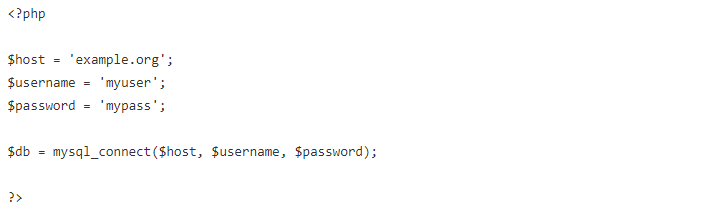
This could be an example of a file called db.inc that is included whenever a connection to the database is needed. This approach is convenient, and it keeps the access credentials in a single file.
Potential problems arise when this file is somewhere within document root. This is a common approach, because it makes include and require statements much simpler, but it can lead to situations that expose your access credentials.
Remember that everything within document root has a URL associated with it. For example, if document root is /usr/local/apache/htdocs, then a file located at /usr/local/apache/htdocs/inc/db.inc has a URL such as http://example.org/inc/db.inc.
Combine this with the fact that most web servers will serve .inc files as plaintext, and the risk of exposing your access credentials should be clear. A bigger problem is that any source code in these modules can be exposed, but access credentials are particularly sensitive.
Of course, one simple solution is to place all modules outside of document root, and this is a good practice. Both include and require can accept a filesystem path, so there’s no need to make modules accessible via URL. It is an unnecessary risk.
If you have no choice in the placement of your modules, and they must be within document root, you can put something like the following in your httpd.conf file (assuming Apache):
<Files ~ “\.inc$”>
Order allow,deny
Deny from all
</Files>
It is not a good idea to have your modules processed by the PHP engine. This includes renaming your modules with a .php extension as well as using AddType to have .inc files treated as PHP files. Executing code out of context can be very dangerous, because it’s unexpected and can lead to unknown results. However, if your modules consist of only variable assignments (as an example), this particular risk is mitigated.
My favorite method for protecting your database access credentials is described in the PHP Cookbook (O’Reilly) by David Sklar and Adam Trachtenberg. Create a file, /path/to/secret-stuff, that only root can read (not nobody):
SetEnv DB_USER “myuser”
SetEnv DB_PASS “mypass”
Include this file within httpd.conf as follows:
Include “/path/to/secret-stuff”
Now you can use $_SERVER[‘DB_USER’] and $_SERVER[‘DB_PASS’] in your code. Not only do you never have to write your username and password in any of your scripts, the web server can’t read the secret-stuff file, so no other users can write scripts to read your access credentials (regardless of language). Just be careful not to expose these variables with something like phpinfo() or print_r($_SERVER).
SQL Injection
SQL injection attacks are extremely simple to defend against, but many applications are still vulnerable. Consider the following SQL statement:
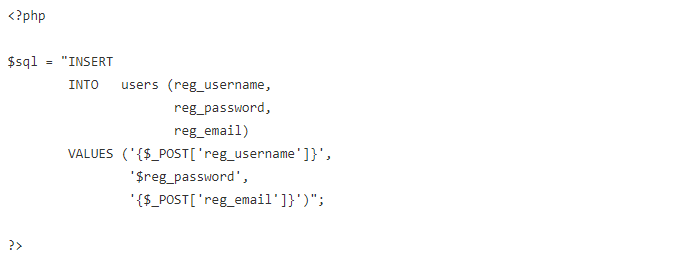
This query is constructed with $_POST, which should immediately look suspicious.
Assume that this query is creating a new account. The user provides a desired username and an email address. The registration application generates a temporary password and emails it to the user to verify the email address. Imagine that the user enters the following as a username:
bad_guy’, ‘mypass’, ”), (‘good_guy
This certainly doesn’t look like a valid username, but with no data filtering in place, the application can’t tell. If a valid email address is given (shiflett@php.net, for example), and 1234 is what the application generates for the password, the SQL statement becomes the following:
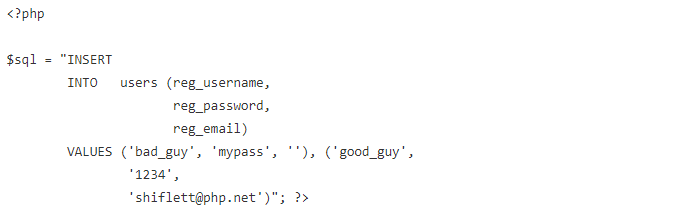
Rather than the intended action of creating a single account (good_guy) with a valid email address, the application has been tricked into creating two accounts, and the user supplied every detail of the bad_guy account.
While this particular example might not seem so harmful, it should be clear that worse things could happen once an attacker can make modifications to your SQL statements.
For example, depending on the database you are using, it might be possible to send multiple queries to the database server in a single call. Thus, a user can potentially terminate the existing query with a semicolon and follow this with a query of the user’s choosing.
MySQL, until recently, does not allow multiple queries, so this particular risk is mitigated. Newer versions of MySQL allow multiple queries, but the corresponding PHP extension (ext/mysqli) requires that you use a separate function if you want to send multiple queries (mysqli_multi_query() instead of mysqli_query()). Only allowing a single query is safer, because it limits what an attacker can potentially do.
Protecting against SQL injection is easy:
- Filter your data. This cannot be overstressed. With good data filtering in place, most security concerns are mitigated, and some are practically eliminated.
- Quote your data. If your database allows it (MySQL does), put single quotes around all values in your SQL statements, regardless of the data type.
- Escape your data. Sometimes valid data can unintentionally interfere with the format of the SQL statement itself. Use mysql_escape_string() or an escaping function native to your particular database. If there isn’t a specific one, addslashes() is a good last resort.
Where do you store your PHP script configurations like DB access data?
Here is the article.
I have an config.php file where I simply make an huge array that contains all the framework configuration. Also the database source string thing like "mysql:host=localhost;dbname=mydb" (whats that called, btw?) and username + password for DB. I'm afraid this is:
- stupid
- not good; better solution there
- not secure (?)
so how do the PHP experts do that?
If you have a www, httpdocs or public_http folder or something like that, where your php application is situated, then it is good practice to put the config file outside of that folder, and just access it like this:
include "../config.php";
Nobody can gain access to that file without FTP access, and so it's relatively safe compared to having it in the application folder.
If you don't have such a folder, you can create one, and make a .htaccess file in the root, which redirects all requests to that folder. There are many different ways to do that, but that's a different question all together.

- unfortunately, almost 99,99% of all cheap virtual hosters don't provide any such directory. Everything from within the root is accessible, and there's no ftp access to what's above the web root.– openfrogDec 27, 2009 at 12:36
- 1Actually, most 'cheap' hosts I've had, have provided such a directory in some form or another. It's also in the host's interest to do so. But see my edit for options.– Tor ValamoDec 27, 2009 at 12:41
- @openfrog: quite a statement you have there, where do you get your data from?– Alix AxelDec 27, 2009 at 16:42
- all the cheap virtual hosting i've ever seen has this option.– nickfJan 8, 2010 at 22:19
Subscribe to:
Posts (Atom)